Input Devices
Keyboards, mice, scroll wheels and gamepads.
 Full Rig Check
Mic, camera, speakers, keyboard, mouse and display in one guided pass, with a report you can save.
Start Rig Check All fix guides All testsBuilt for every rig. Free forever.
Runs in your browser.
Nothing is ever uploaded.
A fix guide for every fault.
Pick a category, or jump straight to the keyboard tester, the most used test on the site.
Keyboards, mice, scroll wheels and gamepads.
Microphones, cameras, speakers and headphones.
Dead pixels, refresh rate, ghosting and color.
Clicks, reflexes, aim and typing speed.
Seven devices, seven instruments. Pick one to see what it checks.
 01KeyboardEvery key, chatter and rollover, live as you type.
 02MouseButtons, wheel steps and ghost double clicks.
 03MicrophoneWaveform, level in dBFS, noise and playback.
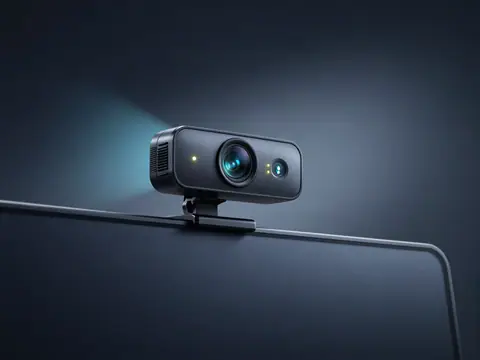 04WebcamReal resolution, frame rate and lighting.
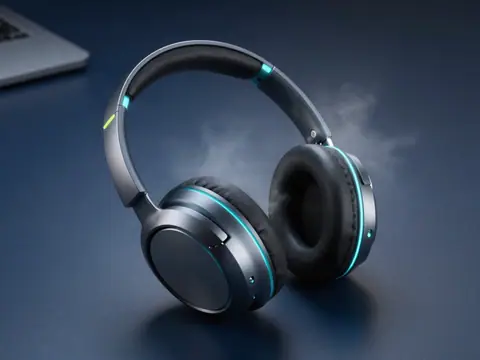 05HeadphonesLeft, right, bass, treble and phase.
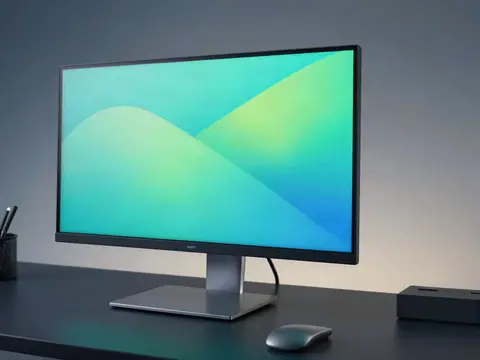 06MonitorDead pixels, refresh rate, ghosting and bleed.
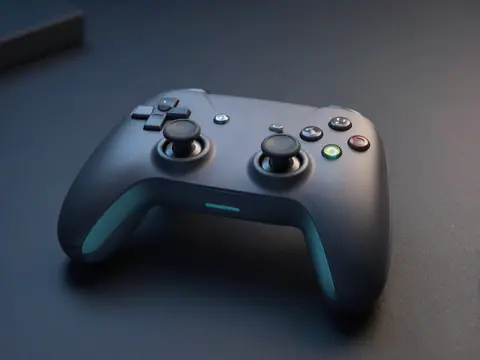 07ControllerButtons, triggers, sticks and drift.
Measure and train the skills your hardware serves. Personal bests stay on this device.
Clicks per second, 1 to 60 seconds.
No record yet. Set your first score.
Wait for green, then react.
No record yet. Set your first score.
Gridshot, flick and tracking.
No record yet. Set your first score.
Words per minute and accuracy.
No record yet. Set your first score.
Taps per second, no held keys.
No record yet. Set your first score.
Same challenge for everyone today. Build a streak.
Next challenge in --:--:--
Your microphone audio, camera picture and keystrokes are handled by code running inside your own browser tab. There is no upload button because there is no upload. Close the tab and the session is gone.
That is also why the tests are fast: no waiting for a server, no account, nothing to install. Read the privacy policy or see how each measurement works.
The Full Rig Check walks through your mic, camera, speakers, keyboard, mouse and display in a few minutes and ends with a report you can save as an image or PDF.
A hardware test checks whether a device does what it should: every key registers, the microphone picks up your voice at a healthy level, the screen has no bad pixels, the controller sticks rest at center. PC Hardware Tester runs those checks in your web browser, so you can test a keyboard, mouse, mic, webcam, speakers, monitor or gamepad in seconds, on any computer, without installing anything.
This guide explains how each test works, what a good result looks like, and what to do when something fails. Use it as a field manual: read the section for the device in front of you, run the matching test, and follow the link to the fix guide if the result points to a problem.
A keyboard tester is a tool that shows which keys on your keyboard send a signal when pressed. You press each key, and the tester lights it up on a picture of a keyboard. Keys that stay dark are not working. A good keyboard tester also catches chatter (one press counted twice) and limited rollover (keys lost when several are held).
Our keyboard tester does all three and works with any layout, including ISO, Mac and laptop keyboards.
| If you want to… | Run this test | Takes |
|---|---|---|
| Check every key on a keyboard | Keyboard tester | 1–2 minutes |
| See why your mouse double clicks | Double click test | 1 minute |
| Hear how your mic sounds before a call | Mic test | 1 minute |
| Check your camera picture and frame rate | Webcam test | 30 seconds |
| Confirm left and right audio are correct | Left right sound test | 20 seconds |
| Check a new monitor for bad pixels | Dead pixel test | 2 minutes |
| See your real refresh rate | Refresh rate test | 10 seconds |
| Check a gamepad for stick drift | Controller tester | 1 minute |
| Check everything in one pass | Full Rig Check | 5 minutes |
Hardware problems are often hard to see by just using a device. A key that chatters once in fifty presses looks like a typo. A microphone that is too quiet sounds fine to you, because you hear your own voice through your skull, not through the mic. A monitor might run at 60 Hz for months after you paid for 144 Hz, because one setting was never changed.
A dedicated test makes the problem visible. It isolates one device, measures it, and shows the result in a way you can compare against a clear standard.
Browser tests have three practical advantages over downloaded tools:
They also have limits, and it is worth knowing them. A browser cannot see keys the operating system keeps for itself (such as the Fn key), cannot read raw sensor data from a mouse, and may round timing values slightly for privacy reasons. Each test on this site states its limits, and the methodology page explains every measurement in detail.
Keyboards fail in a few predictable ways. Some keys stop sending a signal. Some send two signals for one press. Some combinations of keys get lost when you press them together. A good test checks all three.
Open the keyboard tester and press every key once, row by row. Each key lights up as it registers and stays tinted, so you can see what is left. The tester lists any key you have not pressed yet, which makes it easy to spot one that never responded.
Pay attention to three readouts:
A key that never lights up has no electrical connection when pressed. On a mechanical keyboard that usually means a dead switch or a cracked solder joint. On a laptop or membrane keyboard it often means a worn contact or damage to the thin circuit sheet under the keys, sometimes from a spill.
A chattering key closes its contact more than once per press. Every switch “bounces” briefly when it closes, and keyboards filter this out with a short debounce delay. When the switch gets dirty or worn, the bounce lasts longer than the filter, and you get double letters. Our guide to fixing keyboard chattering explains how to clean the switch, adjust debounce in your keyboard software, or replace the switch.
Rollover is about how many keys can be pressed at once and still register. Cheap keyboards save on wiring by sharing circuits between keys, so certain combinations can drop a key or invent a phantom one (ghosting). Gaming keyboards add diodes or use a different design so every key is read independently. If you play games with many held keys, read N-key rollover explained to see what your keyboard needs.
The most common mouse fault is a button that double clicks when you press it once. It is caused by the same thing as keyboard chatter: a worn micro switch whose contact bounces. The second most common is a scroll wheel that jumps backwards, which comes from a worn wheel encoder.
Open the mouse test and click each button: left, right, middle (wheel click), and the two side buttons. Roll the wheel up and down. Every input lights up on the picture of the mouse, and the counters below show totals for each button.
For specific faults, use the focused tests:
A healthy mouse registers every press exactly once, rolls the wheel in one direction without reversals, and reports a polling rate close to its setting (often 125, 500 or 1000 Hz). If your double click test shows red pairs, read how to fix a mouse that double clicks. If you are choosing a sensitivity for games, what DPI to use for gaming explains DPI, in-game sensitivity and centimeters per 360 degrees, and mouse polling rate explained covers report rates.
A microphone can work and still sound bad. The usual problems are a level that is too low or so high that it distorts, background noise, the wrong input device selected, or processing such as noise suppression that makes your voice sound robotic.
Open the mic test and press start. Your browser asks for microphone permission; the audio stays in your browser. Speak at your normal volume and watch three things:
| Peak level while speaking | What it means |
|---|---|
| Below -40 dBFS | Too quiet. People will ask you to speak up. |
| -40 to -24 dBFS | Quiet but usable. Raise the input gain a little. |
| -24 to -6 dBFS | Good. Clear speech with headroom. |
| -6 to -3 dBFS | Loud. Fine for calm speech, risky if you laugh or shout. |
| Above -3 dBFS, or clipping | Too loud. Lower the gain or move back from the mic. |
These bands are a practical guide for calls and voice chat, explained on the methodology page. If your mic is too quiet on a Windows PC, follow mic too quiet on Windows 11. If it works in the test but not in a chat app, the app is probably using a different input device; mic not working on Discord walks through the settings that matter.
Most webcam problems are not the camera itself. Another app holding the camera, a privacy switch or shutter, a blocked permission, or poor lighting cause more failed video calls than broken hardware.
Open the webcam test and press start. Choose your camera if you have more than one. The test shows a live preview and reads:
You can take a snapshot to check sharpness and color at full size.
If the preview stays black or the browser reports no camera, close other apps that might be using it (video call apps keep the camera open in the background), check for a physical shutter or a function key that disables the camera, and confirm the browser has camera permission. Step-by-step instructions for Windows and macOS are in webcam not detected and webcam showing a black screen.
Audio problems split into two groups: routing (sound comes from the wrong place or not at all) and quality (bass is missing, one side is weak, or something sounds hollow).
The left right sound test plays a voice from the left channel, then the right. If you hear “left” from your right side, your channels are swapped, which happens with reversed speaker cables, headphones worn backwards, or a wrong setting in your sound panel. If one side is quieter, check the balance slider in your system sound settings first.
The speaker test goes further: it announces each channel, sweeps a sound smoothly from left to right, and on systems with more channels lets you check surround speakers. The headphone test adds a phase check, which catches a wiring fault where one driver moves in while the other moves out. That fault makes the sound feel thin and oddly placed, as if it came from inside your head at the wrong angle.
Both tests include a frequency sweep from 20 Hz to 20,000 Hz, generated live by your browser. Most people hear roughly that range when young, and the top end falls gradually with age, so do not worry if the highest tones disappear before the sweep ends. Small laptop speakers usually cannot reproduce the lowest bass at all; that is physics, not a fault.
Every audio test starts quietly. Turn your volume down before you begin and raise it slowly. If one side of your headphones is silent, read one headphone side not working.
The online hearing test plays tones at different pitches in each ear and records when you hear them. It is a screening tool for information only, not a medical diagnosis. Your headphones, volume setting and room noise all affect the result. If you have any concern about your hearing, see a licensed audiologist or doctor.
Screens have more ways to disappoint than most parts of a PC, and many are invisible until you look for them.
A pixel is made of three subpixels: red, green and blue. A dead pixel stays black on every color because it no longer receives power or its transistor failed. A stuck pixel stays one color, often red, green or blue, because one subpixel is stuck on or off. A hot pixel stays white.
The dead pixel test fills your screen with solid colors one at a time. Look across the whole screen on each color; a dot that does not match is a bad pixel. Black and white reveal most defects, and red, green and blue show stuck subpixels. A magnifying glass, or your phone camera zoomed in, helps on high-resolution screens.
Stuck pixels can sometimes be revived by rapidly cycling colors over them. The stuck pixel fixer does that, behind a clear photosensitivity warning, at a flash rate you choose. It works on some stuck pixels and never on dead ones. Dead pixel vs stuck pixel explains the difference in depth.
The refresh rate is how many times per second the screen draws a new image, measured in hertz. A 60 Hz screen shows a new frame every 16.7 ms, a 144 Hz screen every 6.9 ms, and a 240 Hz screen every 4.2 ms. Higher rates make motion smoother and games feel more responsive.
The refresh rate test measures the rate your browser is actually drawing at, by timing every frame. If you bought a high-refresh monitor and the test shows 60 Hz, the usual causes are the cable, the port on your graphics card, or a display setting. Is my monitor really running at 144 Hz? walks through each one.
If you just bought a monitor, how to check a new monitor gives a ten-minute routine to run before the return window closes. The FPS test is useful too: it shows how many frames per second your browser can render as load increases.
Modern browsers can read game controllers through the Gamepad API. For privacy, a controller usually appears only after you press one of its buttons while the page is open, so if nothing shows up, press a button first.
Open the controller tester, connect your gamepad by USB or Bluetooth, and press any button. The tester draws a generic controller that matches the button layout, then shows:
There are dedicated pages for the PS5 controller tester and the Xbox controller tester, with notes on each controller’s quirks on PC.
Stick drift is when a stick reports movement while you are not touching it, so your character walks or the camera turns on its own. It usually comes from wear or dirt in the sensors that measure stick position. The tester measures how far from center each stick rests. Small offsets are normal and games hide them with a deadzone, a small area around the center that is ignored. Microsoft documents a default deadzone of about 24 percent of the stick’s range for Xbox controllers; drift beyond that leaks into games.
For fixes, read how to fix stick drift. If your controller does not appear in games, controller not detected in Steam covers the settings that usually cause it, and what is a controller deadzone? explains how to tune deadzones without making aiming feel sluggish.
Some tests measure you, not your hardware. They are fun, they make good warm-ups, and they also reveal hardware limits: a mouse with a failing switch scores oddly high in a CPS test, and a 60 Hz screen adds delay you can see in a reaction time test.
Every skill game saves your personal bests on your device, and the Daily Challenge gives everyone the same challenge each day, with a streak to keep.
The keyboard is the device people test most, and for good reason: it is the part of a computer you touch thousands of times a day, and small faults add up. A keyboard tester answers three separate questions, and it helps to keep them apart.
Does every key send a signal? This is the basic check. You press each key once and watch it light up. A key that never lights is either dead or reserved by your operating system. Letters, numbers, punctuation, Enter, Backspace, the arrows and the modifier keys should always reach the browser. Keys such as Fn, some media keys, and the Windows or Command key in certain shortcuts may not, and that is normal. The keyboard tester draws those keys with dashed outlines so you do not mistake them for faults.
Does each press register exactly once? A key that registers twice is chattering. You may only notice it as the occasional doubled letter, which is easy to blame on yourself. The tester flags any second press that arrives faster than a person could repeat the key, and logs it, so you can see the pattern. Chatter almost always lives in one or two switches, and our chattering guide walks through cleaning, debounce settings and switch replacement in order.
Can the keyboard handle several keys at once? When you hold keys together, cheap keyboard circuits can lose some of them. That limit is called rollover. Hold keys one at a time and watch the “most keys at once” counter. Many office keyboards are fine for typing but block certain three-key combinations that games use. N-key rollover explained covers what NKRO and 6KRO mean and how to switch modes.
| Keyboard type | How it detects a press | Typical faults | What to check in the tester |
|---|---|---|---|
| Membrane (office) | Rubber dome closes a contact on a plastic sheet | Dead keys after spills, blocked combinations | Every key once; rollover in game combinations |
| Laptop (scissor switch) | Small dome under a scissor mechanism | Dead rows after spills, Fn and Num Lock confusion | Laptop layout; hold Fn for the top row |
| Mechanical | Metal contacts inside each switch | Chatter as contacts wear or get dirty | Press suspect keys 30 to 50 times |
| Optical | A light beam is interrupted | Rarely chatter; occasional dead switch | Every key once |
| Magnetic (Hall effect) | A magnet’s position is measured | Calibration drift, sensitivity settings | Every key; repeat after changing actuation settings |
The same keyboard comes in different physical layouts. ANSI (common in the United States) has a wide, short Enter key and a long left Shift. ISO (the United Kingdom and most of Europe) has a tall Enter and an extra key beside a short left Shift. JIS (Japan) adds keys around the spacebar. Laptops and compact boards such as 60% and 65% layouts hide some keys behind a function layer.
The tester reads physical key positions, not characters, so an AZERTY French keyboard or a QWERTZ German one works without any setup. Pick the layout that matches your board so the tester knows how many keys to expect, and in Chrome and Edge it prints your own language’s characters on the keys.
Sometimes a key works in the tester but not in a program, or the other way round. Common reasons:
If several keys in one area are dead in every program and in the tester, laptop keys not working explains how to tell a setting from a hardware fault by testing in the BIOS.
The tester can download a log of every key press with timestamps and flags chatter in it. A log that shows the same key repeatedly firing twice, together with a short phone video, is usually enough evidence for a warranty or return. Test as soon as a new keyboard arrives, while the store’s return window is still open.
Most call problems are not broken hardware but the wrong device, a blocked permission or poor light. A quick routine before an important call avoids the awkward “can you hear me?” minute:
If Discord is your app, mic not working on Discord covers its input sensitivity, push to talk and reset options step by step.
Competitive players care about two things: that inputs are reliable, and that the delay between your hand and the screen is as short and steady as possible. Several tests on this site measure parts of that chain.
| Link in the chain | What adds delay or noise | Test to run | Guide |
|---|---|---|---|
| Mouse reports | Polling rate (8 ms at 125 Hz, 1 ms at 1000 Hz) | Polling rate test | Polling rate explained |
| Mouse sensor | DPI and sensitivity choice | Mouse DPI test | What DPI for gaming |
| Mouse buttons | Worn switches, double clicks | Double click test | Fix mouse double clicking |
| Controller sticks | Drift and dead zone size | Controller tester | Fix stick drift, Dead zones |
| Display | Refresh rate and pixel response | Refresh rate test, Ghosting test | Is my monitor running at 144 Hz |
| You | Reaction time and consistency | Reaction time test | Average reaction time |
Work through the table top to bottom. The biggest wins are usually the simplest: a monitor that was left at 60 Hz, a mouse plugged into a slow hub, or a controller with drift that a game’s dead zone is quietly fighting. Once the hardware is right, the aim trainer and the CPS test are good ways to warm up and track progress. If a controller will not connect in the first place, controller not detected in Steam covers Steam Input and pairing.
Return windows are short, and faults are much easier to fix with a refund than with a repair. Test new hardware the day it arrives, and test used hardware before you hand over money.
| Device | Test | What to look for |
|---|---|---|
| Keyboard | Keyboard tester | Every key lights; no chatter; rollover you need |
| Mouse | Mouse test, double click test | All buttons, wheel both ways, no double clicks |
| Monitor or laptop screen | Dead pixel test, monitor test, refresh rate test | No dead or stuck pixels, acceptable bleed, full refresh rate |
| Controller | Controller tester | Every button, triggers reach 100%, idle drift under 0.08 |
| Headset or speakers | Headphone test, speaker test | Both channels, no crackle when the cable moves |
| Microphone | Mic test | Good level, low background noise, clean playback |
| Webcam | Webcam test | Advertised resolution and frame rate in good light |
For monitors in particular, how to check a new monitor is a full ten-step checklist, dead pixel vs stuck pixel explains which faults count under pixel policies, and backlight bleed explained helps you judge whether the glow in the corners is normal.
If you know what is wrong but not what to do, start here. Each row pairs a symptom with the test that confirms it and the guide that fixes it.
Every guide lives in the guides library, sorted by device.
All tests work in current versions of the major browsers, but browsers do not expose exactly the same features. Knowing the differences saves confusion:
Operating systems matter too. Windows keeps keys such as the Windows key in some shortcuts, macOS keeps Command combinations and the globe key, and both can block camera or microphone access for desktop apps in their privacy settings. When a test needs a feature your browser does not have, it says so and explains what still works, rather than failing silently.
You do not need a desktop to use most of the site. On a phone or tablet, the mic, webcam (front and back), speaker, left right, headphone, dead pixel, reaction time, CPS and typing tests all work with touch. The dead pixel test is especially useful for checking a phone screen; turn the brightness up and use the camera on another phone as a magnifier. On a Chromebook, every test works in Chrome, including the keyboard tester with the Chromebook’s own top-row keys. Controllers paired with a phone or tablet over Bluetooth appear in the controller tester too, in browsers that support the Gamepad API on that system.
Many faults these tests find are preventable or reversible with simple care:
Whether you just unboxed a laptop or are checking a used PC before buying it, this routine catches the most common faults:
Or run the guided Full Rig Check, which covers the same ground step by step and gives you a report you can save. If you are buying second-hand, ask the seller to let you run it before you pay.
Accuracy is a promise this site takes seriously. A few principles guide every tool:
The tools are built and tested on real hardware by Kamel Medlej. You can read more on the about page, and if you find a problem with any tool, the contact page reaches a real person.
Chatter. One key or button press registered more than once because the switch contact bounces.
Debounce. A short delay a keyboard or mouse uses to ignore contact bounce. Too short and you get chatter; too long and fast presses get lost.
Deadzone. An area around a stick’s center that a game ignores, so small drift does not move your character.
dBFS. Decibels relative to full scale, the loudness of a digital audio signal. 0 dBFS is the maximum; everything else is negative.
DPI or CPI. Dots (or counts) per inch: how many position steps a mouse reports for each inch it moves.
Frame time. How long one frame stays on screen, in milliseconds. 1000 divided by the refresh rate.
Ghosting (keyboards). A phantom key that appears when certain combinations are pressed on a simple keyboard circuit.
Ghosting (monitors). A faint trail behind moving objects caused by slow pixel response.
N-key rollover (NKRO). The ability to register every key on a keyboard at the same time.
Polling rate. How many times per second a USB device reports to the computer, in hertz.
Refresh rate. How many times per second a screen draws a new image, in hertz.
Stuck pixel. A pixel that stays one color because one of its subpixels is stuck on or off.
Ready to start? Press any key: the keyboard at the top of this page is already listening. Or open the keyboard tester for the full test.
Step-by-step fixes, tested on real hardware, linked from every test result. See all guides.
Keyboard chattering makes one press type twice. Find the faulty key with a free tester, then fix it with cleaning, debounce settings or a new switch.

Discord mic not working or nobody can hear you? Test your mic online first, then fix input device, sensitivity, permissions and voice settings step by step.
Fix controller stick drift on PS5, Xbox and PC. Measure drift online, then try cleaning, recalibration, dead zones, firmware and stick replacement, in order.
Check if your monitor is really running at 144 Hz or more. Test it online, then fix settings, cables, ports and GPU options that lock you to 60 Hz.
Mouse double clicking on a single click? Confirm it with a free double click test, then fix it with settings, cleaning, debounce or a new micro switch.
Webcam not detected on Windows 11 or macOS? Test it online, then fix privacy settings, camera switches, USB ports, drivers and app conflicts in the right order.
Yes. Every test, game and guide is free, with no account and no download. The site is paid for by ads, which are kept away from the test areas and hidden while a test runs.
Your browser asks for permission only when you press a start button, and you can say no. The audio and video stay inside your browser tab: nothing is recorded to a server or uploaded. When you stop a test, the site releases the device and your browser shows it is no longer in use.
Accurate enough to find faults: a dead key, a mic that is too quiet, a stuck pixel or a drifting stick show up clearly. Timing tests depend on your browser and screen, which can add a few milliseconds. Each tool states its limits, and our methodology page explains every measurement.
Current versions of Chrome, Edge, Firefox and Safari on Windows, macOS, Linux, Android and iOS. A few features need newer browser APIs, such as reading your keyboard layout or choosing a speaker output. When a feature is missing, the tool says so and explains what still works.
Yes. The mic, webcam, speaker, headphone, hearing, dead pixel, reaction time and CPS tests all work on touch screens. The keyboard and mouse tests need a connected keyboard or mouse, and the controller tester works with a gamepad paired to your phone.
Run the Full Rig Check for a quick pass over everything. Then test the parts you can still return: the keyboard tester for every key, the dead pixel test for the screen, and the mic test and webcam test before your first call.
Only on your own device. Personal bests, streaks and achievements are saved in your browser storage so you can see them next time. You can export or delete them on the My stats page at any time.
Yes. Use the language button at the top of any page. The page is translated in place by machine translation, so the layout and tools stay the same. English is the original, reviewed version.
Start with the guided Rig Check, or open the keyboard tester and press a key.