 Full Rig Check
How to Fix Keyboard Chattering (Double Typing Keys)
Keyboard chattering makes one press type twice. Find the faulty key with a free tester, then fix it with cleaning, debounce settings or a new switch.
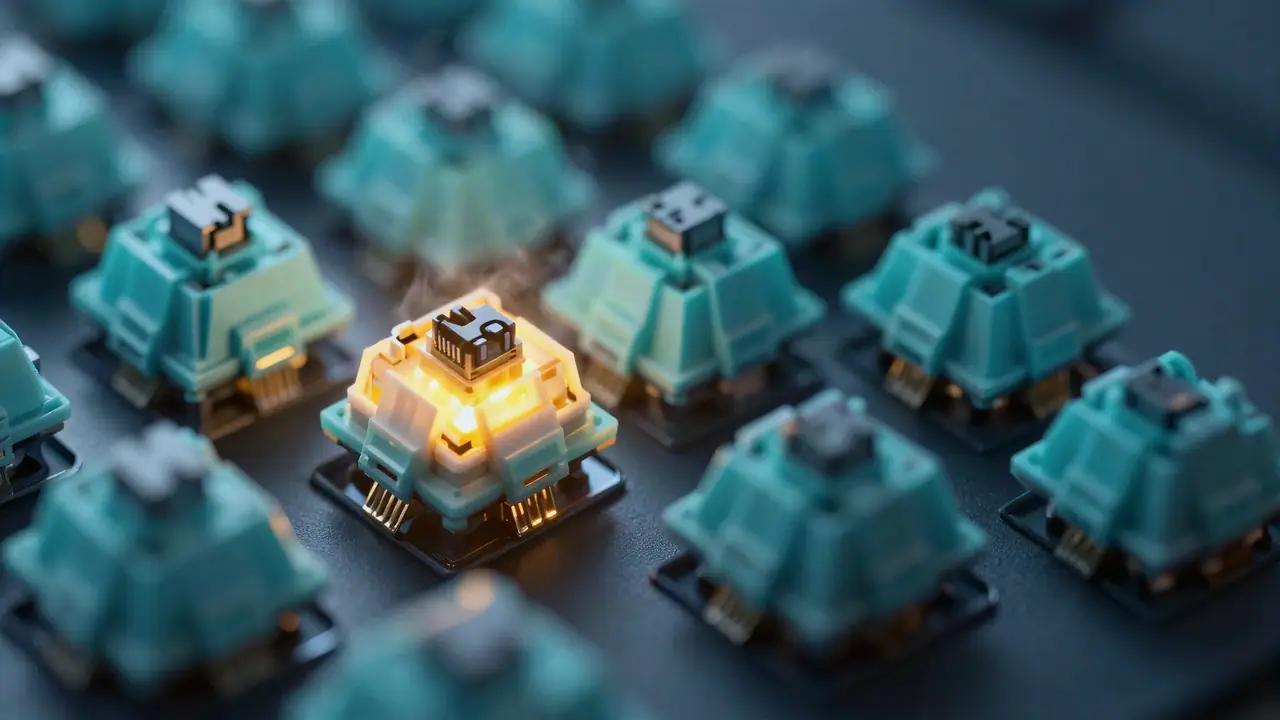
Keyboard chattering is when one key press types the letter twice or more, like “thhe” instead of “the”. It almost always comes from a switch whose contacts bounce or are dirty. The fix, in order: confirm the key with a tester, clean the switch, work the contacts, raise debounce in the keyboard software, and replace the switch if it still chatters.
What keyboard chattering is
Every key on your keyboard closes a tiny electrical contact when you press it. When metal contacts meet, they physically bounce for a few thousandths of a second before settling. Keyboards are built to ignore that bounce with a short filter called debounce. Chatter happens when the bounce lasts longer than the filter, usually because the contacts are dirty, worn or bent, so the keyboard reports two presses.
That is why chatter tends to affect one or two keys, often the ones you use most: E, A, S, Space and Backspace. It also explains why chatter can come and go: a speck of dust or a film of oxidation changes from day to day.
Chatter is not the same as key repeat, which is your operating system sending a key over and over while you hold it down. Holding a key and seeing it repeat is normal. Tapping it once and seeing it twice is chatter.
Step 1: Confirm which key is chattering
Before you open anything, find out exactly which keys are affected.
- Open the keyboard tester and click the keyboard picture.
- Press the suspect key 30 to 50 times at a normal typing pace.
- Watch for an amber dot on the key. The tester flags any second press that arrives less than 30 ms after the key was released, which is faster than a person can repeat one key.
- Press every other key once to check that no other keys are affected.
- Download the CSV log if you plan a warranty claim.
If the tester shows clean presses but you still see double letters in one program, the problem is in that program, a macro tool, or a remote desktop connection, not your keyboard.
Step 2: Clean the switch
Dust and crumbs are the most common cause, and cleaning fixes a surprising number of chattering keys.
- Unplug the keyboard or turn off a wireless one.
- Remove the keycap. Mechanical keyboards use a keycap puller; on most laptops, keys are fragile, so skip this step and clean around the key instead.
- Blow compressed air into the switch from several angles. Hold the can upright to avoid spraying liquid.
- For a sticky key after a spill, a little isopropyl alcohol (90% or higher) on a cotton swab around the stem helps. Let it dry completely.
- Put the keycap back, plug in, and test again.
Step 3: Work the contacts
If cleaning alone does not help, press the switch quickly 50 to 100 times with the keycap off. This rubs the contact surfaces against each other and can remove a thin layer of oxidation. Test again. Many people find this fixes chatter for weeks or months.
Step 4: Raise debounce in software
Most gaming keyboards have software that controls debounce, sometimes called key response time, debounce delay or rapid trigger settings.
| Keyboard software setting | What to change |
|---|---|
| Debounce time | Raise it by 2 to 5 ms and test again. |
| Key response / input delay | Choose a slower or “standard” option instead of the fastest. |
| Rapid trigger (magnetic boards) | Increase the reset distance slightly. |
| Firmware | Update it; makers sometimes fix chatter in firmware. |
A higher debounce hides bounce but adds a few milliseconds of delay, which almost nobody notices while typing.
No software? On Windows, Filter Keys (Settings > Accessibility > Keyboard > Filter keys) can ignore repeated keystrokes within a set time. It applies to every key and can feel sluggish, so use it as a stopgap.
Step 5: Replace the switch
If the key still chatters after cleaning and debounce changes, the switch is worn out.
- Hot-swap keyboards: pull the switch with a switch puller and press in a new one of the same type. You can also swap it with a switch from a key you rarely use, such as Scroll Lock, to confirm the switch is at fault.
- Soldered mechanical keyboards: the switch has to be desoldered and replaced. A repair shop can do this quickly, or use the warranty.
- Laptops and membrane keyboards: individual switches usually cannot be replaced. A laptop keyboard is a single part that a repair shop or the maker can swap.
When to use the warranty
Chatter is a manufacturing or wear fault. If your keyboard is under warranty, a clean tester log showing repeated chatter on one key is usually enough evidence. Keep the CSV from the keyboard tester and a short phone video of the problem.
How to prevent chatter coming back
- Keep food and drinks away from the keyboard.
- Blow out the keyboard every few months.
- Avoid setting debounce to its absolute minimum unless you need it.
- Store keyboards away from damp areas; humidity speeds up contact corrosion.
Quick reference
| Symptom | Most likely cause | First fix |
|---|---|---|
| One key types twice now and then | Dust in the switch | Compressed air |
| Key types twice and feels sticky | Spill residue | Isopropyl alcohol and drying |
| Chatter after a firmware update | Debounce reset to minimum | Raise debounce |
| Chatter on an old, heavily used key | Worn contacts | Replace the switch |
| Double letters in one app only | Software or macros | Check that app and macro tools |
Fixed it? Run the keyboard tester once more and press the key 50 times to be sure, then try the typing test. If several keys are dead rather than doubled, read laptop keys not working. For more on how keyboards report keys, see N-key rollover explained and the PC Hardware Tester home page.
Tools for this problem
- Keyboard Tester: Check every key, chatter and rollover.
- Typing Test: WPM, accuracy and a key error map.
Frequently asked questions
What causes keyboard chattering?
Usually a switch whose metal contacts bounce or are dirty, so one press closes the circuit twice. Dust, worn contacts, a spill, or debounce set too low in the keyboard's software are the common causes.
Can keyboard chattering fix itself?
Sometimes dust works its way out with use, but chatter from worn contacts usually gets worse. Cleaning and pressing the key repeatedly often helps; a worn switch eventually needs replacing.
Is chattering covered by warranty?
Chatter is a hardware fault, so it is normally covered during the warranty period. Record the fault in the keyboard tester and keep the CSV log as evidence.
Does chatter mean my whole keyboard is broken?
No. It usually affects one or two switches. The rest of the keyboard is fine, and on hot-swap boards you can replace only the faulty switch.
How do I test for keyboard chatter?
Open the keyboard tester, press the suspect key 30 to 50 times at a normal pace, and look for an amber dot. The log marks every press that arrived too soon after the last one.