 Full Rig Check
Controller Not Detected in Steam? How to Fix It
Steam not detecting your Xbox, PlayStation or generic controller? Test it in the browser, then fix Steam Input, drivers, cables, Bluetooth and game settings.
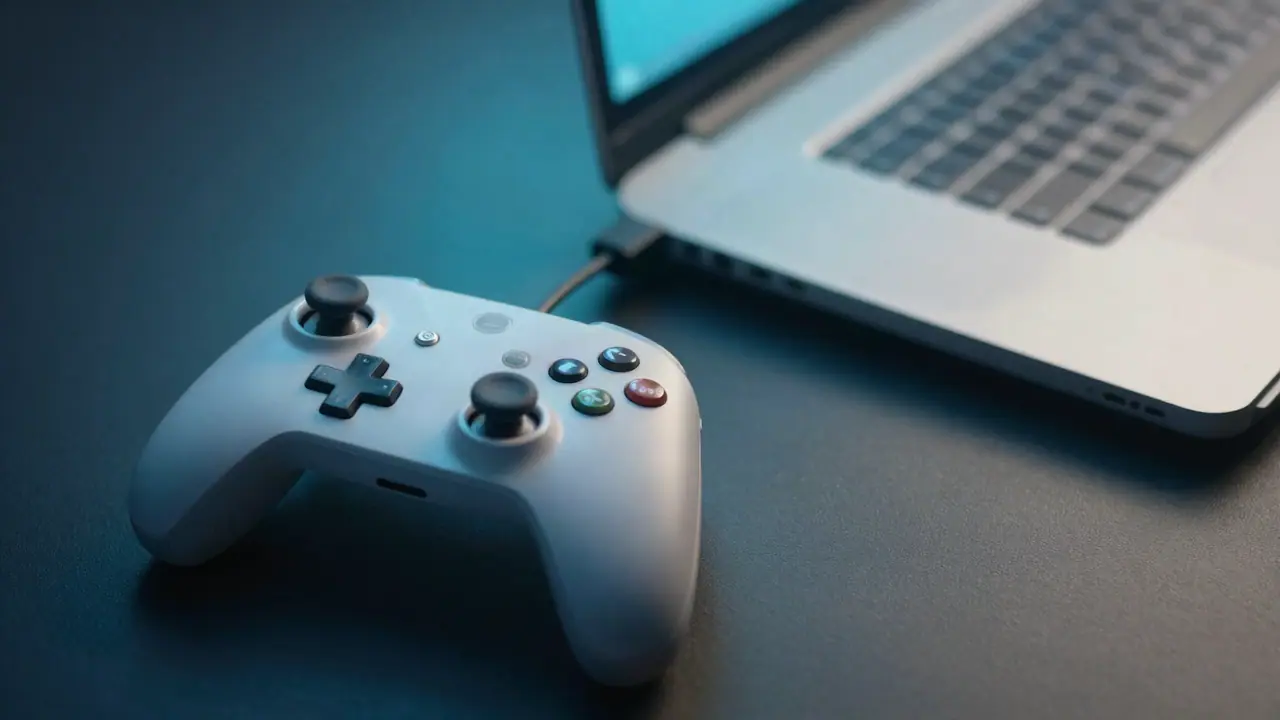
If your controller is not detected in Steam, first check whether the computer sees it at all with an online controller tester. If the tester shows the controller, the fix is in Steam: turn on support for your controller type, restart Steam, and set Steam Input for the game. If the tester sees nothing, fix the cable, Bluetooth pairing or driver first.
Step 1: Test the controller outside Steam
Quit Steam completely (right-click its tray icon > Exit). Open the controller tester and press a button on the controller.
- It appears in the tester: Windows sees it. Restart Steam and continue at step 3.
- It does not appear: the connection or driver is the problem (step 2).
Steam can take exclusive control of controllers, which is why quitting it first gives a clean test.
Step 2: Fix the connection
Wired: use a cable that carries data, not a charge-only cable, and plug it directly into the computer. Try another port.
Xbox wireless: pair through Settings > Bluetooth & devices > Add device, or use the Xbox Wireless Adapter. Update the controller in the Xbox Accessories app.
PlayStation wireless: hold Share (PS4) or Create (PS5) and the PS button until the light flashes, then pair it in Bluetooth settings.
Generic controllers: some have a switch between X-input and D-input modes. X-input usually works best on Windows.
Step 3: Turn on controller support in Steam
- Open Steam > Settings > Controller.
- Turn on support for your controller type (Xbox, PlayStation, Switch Pro or generic).
- Restart Steam and reconnect the controller.
- The controller should appear in the list with its name; open it to test and calibrate.
Step 4: Set Steam Input for the game
Right-click the game in your library > Properties > Controller, then pick:
- Use default settings: Steam decides.
- Enable Steam Input: use this if the game does not see your controller at all.
- Disable Steam Input: use this if buttons are doubled, the wrong prompts show, or the controller acts twice, which happens when the game already supports the controller natively.
Step 5: Check Big Picture mode
Some controllers only finish setup in Big Picture mode. Open it from the Steam menu, go to Settings > Controller and check the controller appears and responds.
Step 6: Remove conflicting software
Other remapping tools (DS4 drivers, third-party controller managers, macro tools) can hide or duplicate controllers. Close or uninstall them, then restart the computer and Steam.
Step 7: Update drivers and Windows
Install pending Windows updates. For PlayStation controllers, Steam provides its own support, so extra drivers are usually unnecessary. For generic pads, check the maker’s site.
Quick reference
| Symptom | Fix |
|---|---|
| Not in the browser tester either | Steps 1 and 2 |
| In the tester, not in Steam | Step 3 |
| In Steam, not in one game | Step 4 |
| Double inputs in a game | Disable Steam Input for that game |
| Appears twice | Step 6 |
Once it is detected, check every button and look for drift in the controller tester. If a stick moves by itself, read how to fix stick drift, and tune the feel with what is a controller dead zone. All tests are on the home page.
Steam is a trademark of Valve Corporation; Xbox and PlayStation are trademarks of their owners. This site is not affiliated with them.
Tools for this problem
- Controller Tester: Buttons, triggers, sticks, drift, rumble.
- Xbox Controller Tester: Xbox buttons, triggers, drift and rumble.
- PS5 Controller Tester: DualSense buttons, triggers and drift.
Frequently asked questions
Why does Steam not detect my controller?
The controller may not be connected properly, Steam Input support for that controller type may be off, another program may be capturing it, or the cable may only carry power. Some games also need Steam Input switched on or off per game.
How do I check if Windows sees my controller?
Open our controller tester and press a button. If it appears there, Windows and your browser see it, and the problem is in Steam's settings.
How do I enable PlayStation controller support in Steam?
In Steam Settings > Controller, turn on support for PlayStation controllers. Then restart Steam and reconnect the controller.
Should I turn Steam Input on or off?
Turn it on if a game does not support your controller natively. Turn it off for a game if buttons are doubled or wrong. You can set it per game in the game's Properties > Controller.
Why does my controller work in Steam but not in a game?
The game may expect an Xbox-style controller. With Steam Input on, Steam presents your controller as one. Check the game's own controller settings too.